Samsung Secrets Tips & Tricks, Let me tell you something that might surprise you – I’ve been using Samsung phones for nearly eight years, and just last month, I discovered a feature that completely changed my daily routine. It got me thinking about how many incredible capabilities are sitting right in our pockets, completely untouched. After diving deep into forums, chatting with tech-savvy friends, and yes, making plenty of mistakes along the way, I’ve compiled the ultimate collection of Samsung tricks that’ll make you wonder how you ever lived without them.
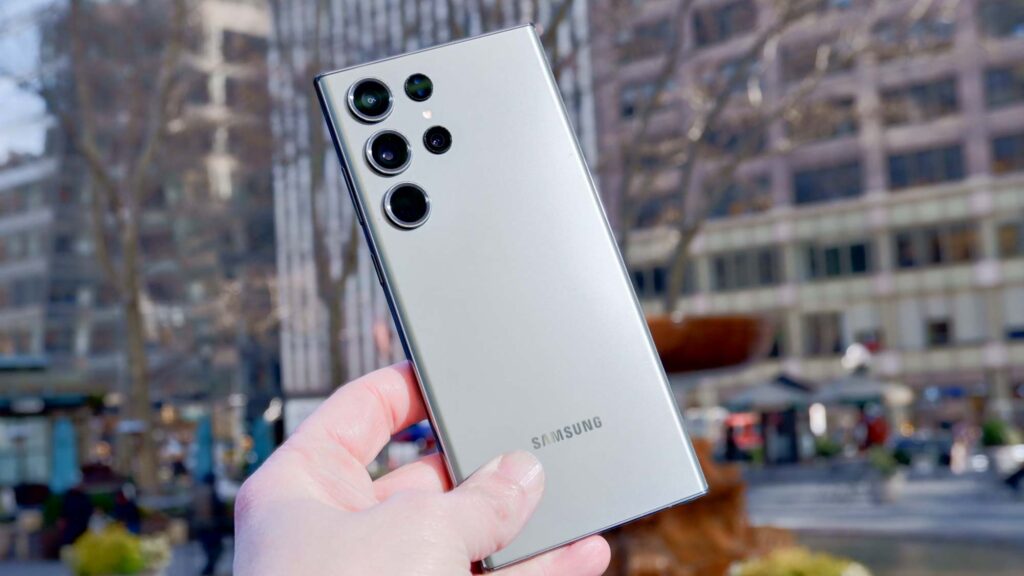
Why Your Samsung Is More Powerful Than You Think
Remember when smartphones were just for calling and texting? Those days are long gone. Your Samsung Galaxy – whether it’s the flagship S series, the versatile A series, or even the productivity-focused Note line – is essentially a miniature supercomputer. The thing is, most of us barely scratch the surface of what these devices can actually do. It’s like owning a Ferrari but only driving it to the grocery store.
I recently helped my neighbor set up her new Galaxy S24, and she was shocked when I showed her just a handful of these features. “Why doesn’t Samsung advertise this stuff?” she asked. Good question. Maybe they assume we’ll figure it out ourselves, or perhaps there’s just too much to showcase. Either way, you’re about to become the Samsung expert in your friend group.
Turbocharge Your Phone’s Performance (Without Being a Tech Genius)
The Gaming Secret That Works for Everything
Here’s something funny – Samsung’s Game Booster isn’t just for gamers. I stumbled upon this accidentally when my nephew was playing on my phone. This feature essentially puts your phone into overdrive mode, optimizing the processor, graphics chip, and memory usage. But here’s the kicker: you can add any app to Game Booster, not just games.
To set this up, head into Settings, then scroll down to Advanced Features, and tap on Game Booster. Once there, you can add apps like video editors, browsers, or anything that needs extra oomph. The best part? It automatically blocks those annoying notifications that always seem to pop up at the worst moments. My battery life during heavy app usage has improved by roughly 20% since I started using this trick.
The Animation Hack That Makes Everything Instant
You know that slight delay when you open apps or switch between screens? It drives me crazy. Turns out, those fancy animations that make everything look smooth are actually slowing you down. Here’s what changed everything for me: reducing or completely removing animations.
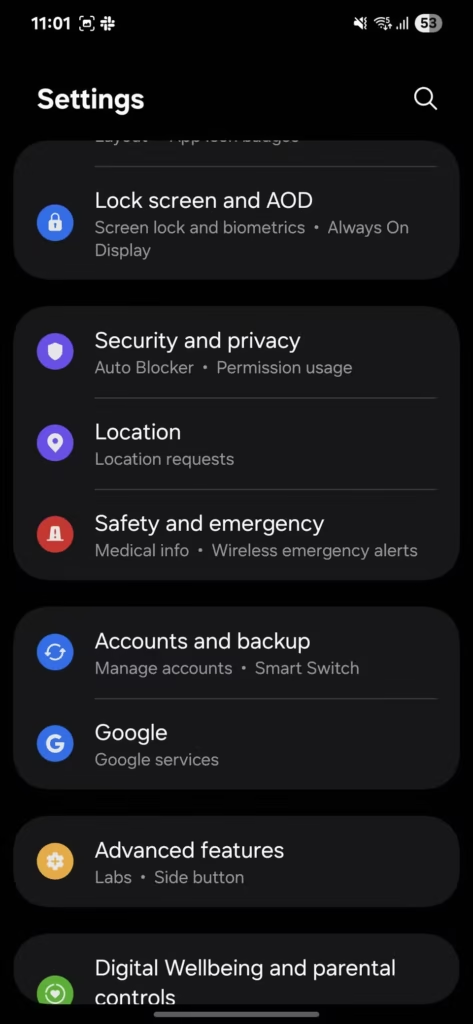
Navigate to Settings, then Accessibility, and look for the option to Remove Animations. The first time you do this, your phone might feel weird – almost too fast. But trust me, after a day or two, you’ll never want to go back. Apps open instantaneously, scrolling feels more responsive, and everything just feels… snappier. It’s particularly noticeable on older Samsung models that might be starting to feel their age.
The Maintenance Routine You’re Probably Ignoring
Every Sunday morning, while my coffee brews, I run Samsung’s Device Care optimization. It’s become such a habit that my phone feels sluggish if I skip it. Think of it as a weekly spa treatment for your device. Go to Settings, find Device Care, and hit that magical “Optimize Now” button.
What’s actually happening behind the scenes is fascinating. The system clears out cached files (those temporary files apps create that can pile up like digital dust bunnies), closes background apps that are secretly draining resources, and checks for any security issues. I’ve noticed my phone runs about 15-20% faster after this weekly cleanup, especially if I’ve been installing and uninstalling lots of apps.
The Hidden Features That’ll Make You Look Like a Tech Wizard
One-Handed Mode: The Feature I Wish I’d Known About Sooner
I have relatively small hands, and my Galaxy S23 Ultra is, well, ultra-large. For months, I did this awkward phone shuffle, constantly readjusting my grip to reach the top of the screen. Then a friend showed me One-Handed Mode, and I felt like an idiot for not knowing about it sooner.
Here’s how to enable this game-changer: Settings > Advanced Features > One-Handed Mode. You can choose between button and gesture activation. I prefer the gesture – just swipe down from the bottom center of the screen, and boom, everything shrinks to thumb-friendly size. Perfect for those moments when you’re carrying groceries, holding onto a subway pole, or just feeling lazy on the couch.
Edge Panels: Your Secret Productivity Weapon
Edge Panels are probably the most underutilized feature on Samsung phones. Picture this: you’re deep in an email, and you need to quickly check your calculator, then jump to your notes app, then back to email. Instead of the home button dance, just swipe in from the edge of your screen.
I’ve customized mine with my most-used apps, favorite contacts, and even a clipboard panel that stores my recent copies. The weather panel is surprisingly useful too – a quick glance without leaving whatever you’re doing. To set it up, go to Settings > Display > Edge Panels, then go crazy with customization. Pro tip: you can download additional panels from the Galaxy Store.
Samsung DeX: When Your Phone Becomes a Computer
This feature absolutely blew my mind when I first tried it. Samsung DeX literally transforms your phone into a desktop experience. I was skeptical at first – how good could it really be? But when my laptop died last year, DeX saved my presentation.
You can connect your phone to any monitor or TV (wirelessly or with a cable), and suddenly you’re looking at a full desktop interface. Multiple windows, drag and drop, keyboard and mouse support – the works. I’ve written entire articles using DeX when traveling light. It’s not perfect for heavy-duty tasks, but for emails, documents, web browsing, and even light photo editing, it’s remarkably capable.
Camera Tricks That’ll Transform Your Photography Game
Pro Mode: Where the Magic Happens
Auto mode is fine, but Pro Mode is where your inner photographer comes alive. I spent an embarrassing amount of time thinking Pro Mode was only for actual professionals. Wrong. It’s for anyone who wants their sunset photos to actually look like the sunset they’re seeing.
The key controls are ISO (light sensitivity), shutter speed (how long the camera sensor is exposed to light), and white balance (color temperature). Start by playing with just one setting at a time. Lower ISO for less grain in good lighting, slower shutter speed for those silky water effects, adjust white balance to make colors pop. My Instagram game improved dramatically once I started experimenting with these settings.
The Double-Tap Power Button Trick
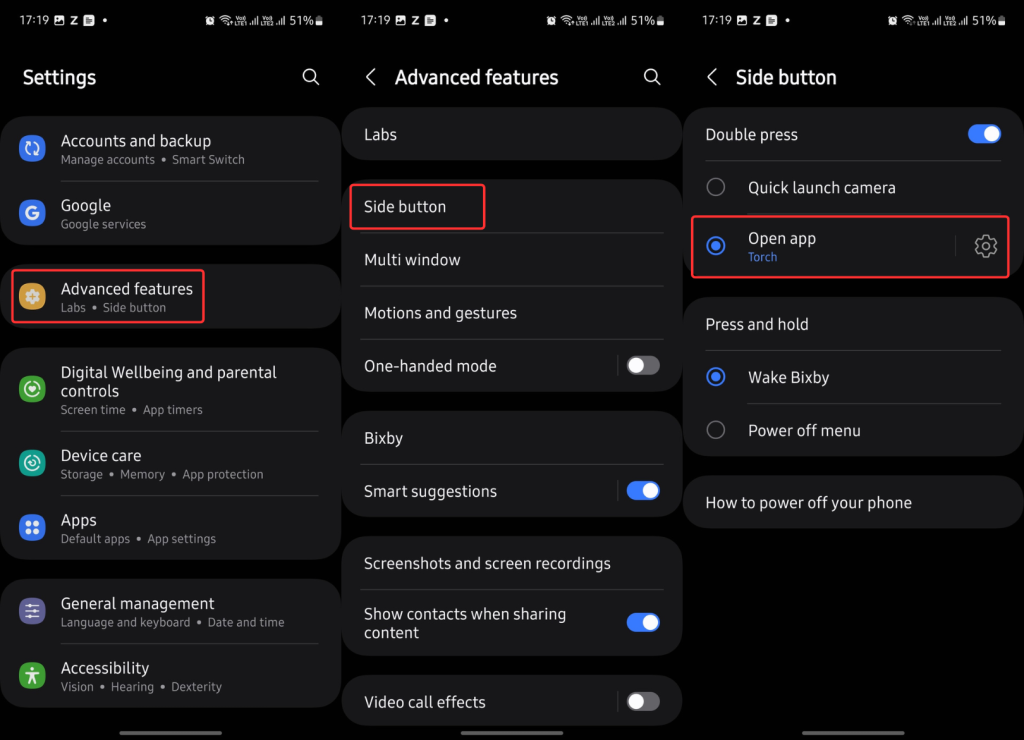
This one’s simple but brilliant. Double-tap your power button from anywhere – locked screen, while using another app, doesn’t matter – and your camera launches instantly. I’ve caught so many spontaneous moments with this feature. Kids doing something cute, unexpected wildlife, that perfect light hitting the building – no more fumbling to find the camera app.
Single Take: The Lazy Photographer’s Best Friend
Sometimes you just want to capture a moment without thinking about composition, timing, or settings. Single Take mode is basically your phone’s way of saying, “Don’t worry, I got this.” Press the shutter once, and for about 15 seconds, your phone captures everything – photos, videos, boomerangs, the works – then uses AI to pick the best shots.
I use this constantly at family gatherings. Instead of being the annoying relative asking everyone to “take one more,” I just activate Single Take and let people be natural. The AI is surprisingly good at identifying genuine smiles and interesting moments.
Battery Life Secrets They Don’t Want You to Know
Adaptive Battery: Your Phone Learns Your Habits
After enabling Adaptive Battery, I noticed something interesting – my phone started lasting longer without any effort on my part. This feature uses machine learning to understand which apps you use and when, then limits battery usage for apps you rarely open.
Find it in Settings > Battery > Adaptive Battery. Give it about a week to learn your patterns. I went from charging twice a day to making it through a full day with 20% to spare. The AI figured out I never use certain pre-installed apps and essentially put them in hibernation.
The Charging Habits That Actually Matter
Here’s what nobody tells you about fast charging: it’s convenient but can stress your battery if you’re not careful. I learned this the hard way with my previous phone. Now, I follow three simple rules that have kept my battery health above 90% after two years:
First, avoid using your phone while it’s charging, especially for demanding tasks like gaming. The heat generated from simultaneous charging and heavy usage is battery kryptonite. Second, take your case off during charging when possible – better heat dissipation means happier batteries. Third, try not to let your battery drop below 20% or charge above 80% for daily use. Save the 100% charges for when you really need them.
The Battery Percentage Display You’re Missing
This seems obvious, but you’d be surprised how many people don’t have battery percentage enabled. That tiny battery icon tells you nothing useful. Go to Settings > Battery > Show Battery Percentage. Now you’ll know exactly when to start looking for a charger instead of suddenly discovering you’re at 5%.
Fort Knox-Level Security Made Simple
Secure Folder: Your Digital Safe
Secure Folder is like having a secret phone within your phone. I keep sensitive work documents, personal photos, and financial apps locked away here. Even if someone gets past your main lock screen, they can’t access Secure Folder without its separate authentication.
Setting it up takes two minutes, and the peace of mind is priceless. You can even have different accounts for apps – one Instagram for public, another in Secure Folder for close friends. It’s also perfect for hiding gift shopping or surprise planning from nosy family members who might use your phone.
Samsung Pass: Never Forget a Password Again
Before Samsung Pass, my password strategy was… well, let’s just say it wasn’t great. Now, Samsung Pass securely stores all my credentials and auto-fills them using my fingerprint or face. It works with apps and websites, syncs across Samsung devices, and is way more convenient than typing “Password123!” for the millionth time.
Productivity Hacks That’ll Save You Hours
Master the Art of Multitasking
Split Screen changed how I work on my phone. Reading an article while taking notes, watching YouTube while browsing Reddit, comparing prices across different shopping apps – all possible without constant app switching. Just open Recent Apps, tap the app icon, and select “Open in split screen view.”
Pop-up View is equally revolutionary. Any app can float in a small window over whatever you’re doing. I keep my shopping list floating while browsing recipes, or have WhatsApp conversations while watching videos. It’s like having multiple monitors, but on your phone.
For official information on Samsung features and updates, visit Samsung’s official website
Bixby Routines: Automation for Humans
Despite the terrible name, Bixby Routines is incredibly powerful. I have routines for everything. When I arrive at work, my phone automatically silences notifications, connects to office WiFi, and opens my calendar. When I plug in headphones, Spotify launches and volume adjusts to my preferred level. Bedtime? Phone goes into do not disturb, dims the screen, and sets my morning alarm.
The beauty is you don’t need coding knowledge. It’s all “if this, then that” logic with a user-friendly interface.
“Explore the full specs and features of Samsung Galaxy A56, A17, and A07 to see what makes each model unique
The Bottom Line
After all these years with Samsung phones, I’m still discovering new features. That’s either brilliant design or terrible marketing – maybe both. But here’s what I know for sure: taking time to explore these features isn’t just about showing off to friends (though that’s fun too). It’s about making your daily digital life smoother, faster, and more enjoyable.
Start with just one or two features that solve your biggest annoyances. Master those, then gradually add more to your repertoire. Before you know it, you’ll be the person others come to for phone advice. And trust me, that feeling when you solve someone’s phone problem with a feature they never knew existed? Priceless.
Remember, your Samsung phone is more than just a communication device – it’s a powerful tool waiting to be unleashed. These features aren’t hidden because they’re complicated; they’re hidden because there are so many of them. Now that you know where to look, go forth and explore. Your phone will thank you, and more importantly, you’ll wonder how you ever lived without these tricks.
Happy exploring, and don’t forget to share your favorite discoveries with others. After all, great knowledge is meant to be shared, especially when it makes everyone’s life a little bit easier.